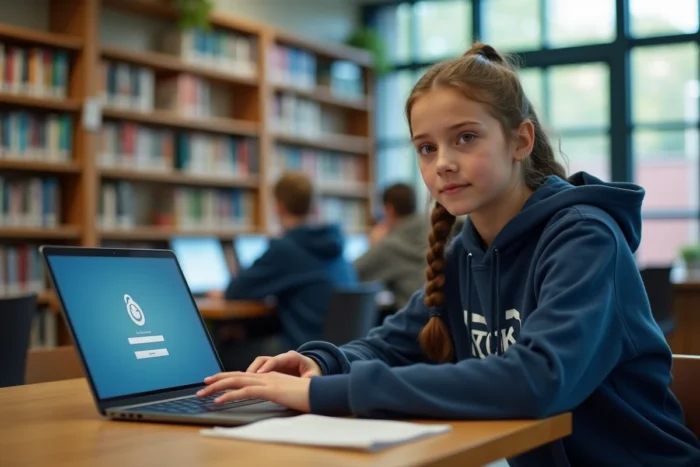
Access to Pronote at Jules Ferry College in Aurillac now goes through a layer of single sign-on (SSO) via EduConnect, as is the case in most colleges in Cantal. This change, linked to enhanced security audits on academic ENT systems, modifies the login procedure that families were familiar with until now. Here are the technical points to master to avoid blockages.
SSO Authentication and EduConnect: What Changes for Pronote in Aurillac
Direct access to Pronote via the institution’s URL (0150647x.index-education.net) now redirects to the EduConnect portal of the Clermont-Ferrand academy. In practice, even when accessing the Pronote page of the college, the identification form no longer appears: the server redirects to the academic ENT to validate the session.
This SSO mechanism means that a single username/password pair manages access to Pronote, LSU, Pix, and other related services. We recommend never attempting to bypass this redirection by using old direct links, as the Pronote session will not initialize without a valid SSO token.
For families wishing to connect to Pronote at Jules Ferry College Aurillac without difficulty, the procedure always starts with the EduConnect portal, then selecting the institution in the ENT before accessing Pronote.
Activating the Parent EduConnect Account
The parent EduConnect account is created using the mobile phone number provided during registration. A verification SMS is sent, followed by the creation of the password. If the registered number has changed, only the college’s administration can update this information in the SIECLE database.
The student account follows a different process: usernames are distributed at the beginning of the school year by the homeroom teacher or school administration. The parent account and the student account are distinct, with different access rights on Pronote (parents see justifiable absences, students do not).

Resolving Connection Errors for ENT Pronote at Jules Ferry College
The most frequent blockages do not come from Pronote itself, but from the upstream authentication chain. We observe three recurring cases.
- The browser retains an old expired ENT session cookie. Clearing the cache and cookies for the domain ac-clermont.fr resolves the issue in most cases. On mobile, completely closing the browser before relaunching the connection often suffices.
- The EduConnect password has expired or has been reset on the server after a prolonged period of inactivity. The recovery procedure goes through the “Forgot Password” link on the EduConnect portal, never directly through Pronote.
- The account is linked to another institution (in the case of multi-institution siblings). It is necessary to check in EduConnect that Jules Ferry Aurillac College appears in the list of institutions linked to the parent profile.
An expired browser cache causes the majority of connection failures. Before any other steps, we recommend a test in private browsing mode to isolate this factor.
Special Case of the Pronote Mobile App
The mobile app uses a QR code generated from the web version of Pronote, after successful login via the ENT. This QR code is only valid for a few minutes. If pairing fails, the code must be regenerated from a desktop browser, not from the mobile browser.
Once the app is paired, mobile connection works without having to go through the ENT at each opening. However, a change in the EduConnect password invalidates the pairing and requires the complete procedure to be redone.
Pronote Beyond Grades: Expanded Uses at Jules Ferry College Aurillac
The Clermont-Ferrand academy has expanded the use of Pronote to track transversal skills such as teamwork and autonomy. Several colleges in the Aurillac basin, including Jules Ferry College, use Pronote as a support for tracking educational projects, particularly in initiatives like the Industrial Careers Challenge.
For parents, this means that the “Skills” tab in Pronote is no longer limited to disciplinary assessments. Items related to transversal projects may appear there, with evaluations by level of mastery. Do not confuse these project evaluations with the traditional quarterly averages.
Local Maintenance and First-Level Support
The Cantal Departmental Council has integrated first-level maintenance of digital educational services into the missions of certain technical agents at the college. In practice, an on-site agent can intervene on a workstation that fails to load the ENT, check internal network connectivity, or restart a blocked service.
For issues related to Pronote usernames or access rights, the point of contact remains the school’s administration, which has administrator access to the SIECLE database and can correct an erroneous parent-student linkage.
Security of the Parent and Student Pronote Accounts
The transition to SSO EduConnect has strengthened security, but the chain remains only as strong as its weakest link. Never share EduConnect credentials between parent and student: beyond the risk of confusion in their respective spaces, a reported absence or a message to a teacher sent from the wrong profile can create administrative complications.
Email notifications sent by Pronote (new grade, reported absence, message from a teacher) are sent through the address provided in EduConnect. Ensuring that this address is up to date helps avoid missing information transmitted by the school administration or management.
Logging out after each session on a shared computer remains a basic precaution. On the mobile app, the phone’s biometric lock serves as the first barrier of protection for the account.