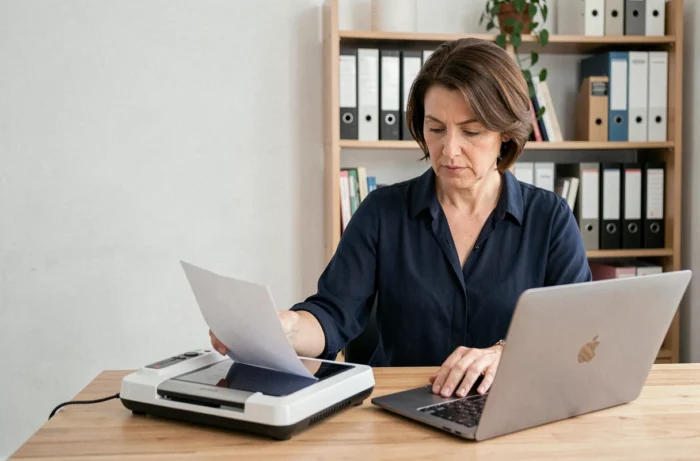
The Agirc-Arrco portal imposes technical constraints on attachments that regularly block the sending of supporting documents, even when the files meet the expected formats. Feedback published on Services Publics + in August 2026 confirms that the issue does not always stem from the file size: server-side malfunctions sometimes prevent the submission of compliant PDF or JPEG files.
Technical limitations of the Agirc-Arrco portal and reported bugs in 2026
The majority of online guides attribute sending failures to a file being too large or poorly formatted. We observe a different reality: server-side bugs block perfectly compliant files.
A testimony from August 21, 2026, on Services Publics + describes the inability to attach payslips in PDF or JPEG despite a reasonable size. Another user, after a physical appointment with an Agirc-Arrco advisor, was advised to use another digital channel to bypass the problem.
These reports point to limitations in the upload interface of the personal space, not to user error. Before compressing your files or changing formats, check that the online form actually accepts attachments at the time of your attempt. A repeated failure across several distinct documents almost always indicates a temporary technical issue with the portal.
For those experiencing this type of blockage, it remains possible to send documents to Agirc-Arrco via the internet or email by adapting the transmission method to the actual constraints of the platform.
File compression and format: the parameters that matter
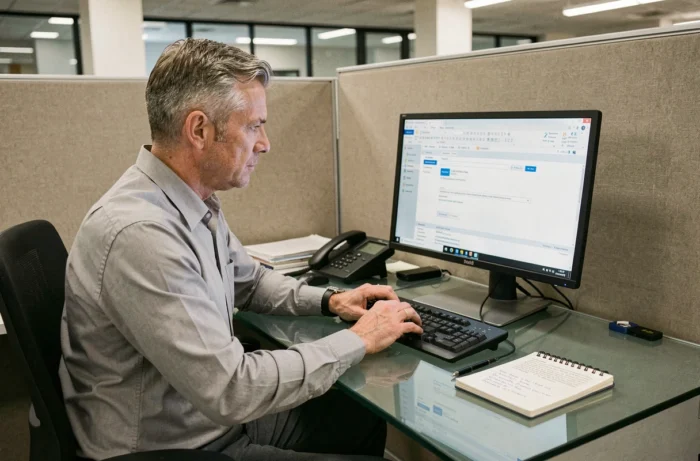
When the portal is functioning normally, rejections of attachments most often stem from a scan being too large or an unrecognized format. We recommend standardizing three settings before any submission.
- Scanning resolution at a maximum of 150 DPI: a payslip scanned at 300 DPI generates a file two to three times heavier without any gain in readability for a text document. 150 DPI is sufficient for the characters to remain clear.
- Single-page PDF format rather than JPEG: the portal manages PDFs better, and a text document compressed in PDF weighs significantly less than a JPEG of equivalent quality. Avoid multi-page PDFs that group the entire file into one document.
- One file per supporting document: splitting the file into as many files as there are requested documents (career statement, latest tax notice, payslips) reduces the individual weight and facilitates processing on the manager’s side.
If despite these precautions a file is still rejected, use an online PDF compression tool (Smallpdf, iLovePDF) to bring it below the limit. The portal does not explicitly communicate its maximum allowed size, but user feedback places the functional threshold well below what most digital public services accept.
Alternatives to the personal space for submitting a bulky file
When submission via the personal space repeatedly fails, three alternative channels remain operational.
Registered postal mail remains the most reliable fallback solution. Complementary pension funds accept photocopies of supporting documents, there is no need to send the originals. The address of your fund is listed on the last letter received or in the “Contact Us” section of your online space.
Physical submission at the agency allows you to hand over paper documents directly to an advisor. This channel offers a double advantage: immediate verification of the completeness of the file and an acknowledgment of receipt on the spot. Appointments can be made from the personal space or by phone.
Emailing the designated advisor, when they provide a direct address during a phone exchange, bypasses the limitations of the online form. Most professional email services accept larger attachments than the submission portal. Explicitly ask for this option during your next call.
Preparing your digital supporting documents before applying for complementary retirement
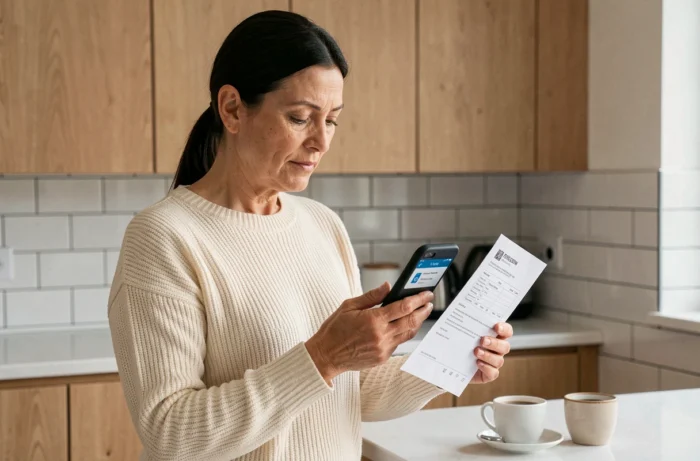
The time when you are compiling your complementary retirement file is not the right moment to discover that your payslips are unusable digitally. We recommend anticipating the digitization several months before submission.
Start with the oldest documents, often on thermal paper or in atypical formats. These supporting documents degrade over time and may require manual cropping after digitization. Name each file explicitly: “payslip_january_2019.pdf” will be processed faster than “scan_003.pdf”.
Check that each document is readable by reopening it after saving. A PDF corrupted during digitization will go unnoticed until rejected by the manager, which can extend processing by several weeks.
- Group documents by type (payslips, tax notices, career statements) into separate folders on your computer
- Keep a backup copy on a second medium (USB stick, personal cloud)
- Note the date of each submission and the channel used to effectively follow up in case of no response
Managing digital procedures with Agirc-Arrco remains constrained by tools that were not designed for files containing numerous supporting documents. Anticipating digitization and diversifying submission channels remains the best protection against the technical blockages that regularly occur on the portal.